Tray Mockup Set
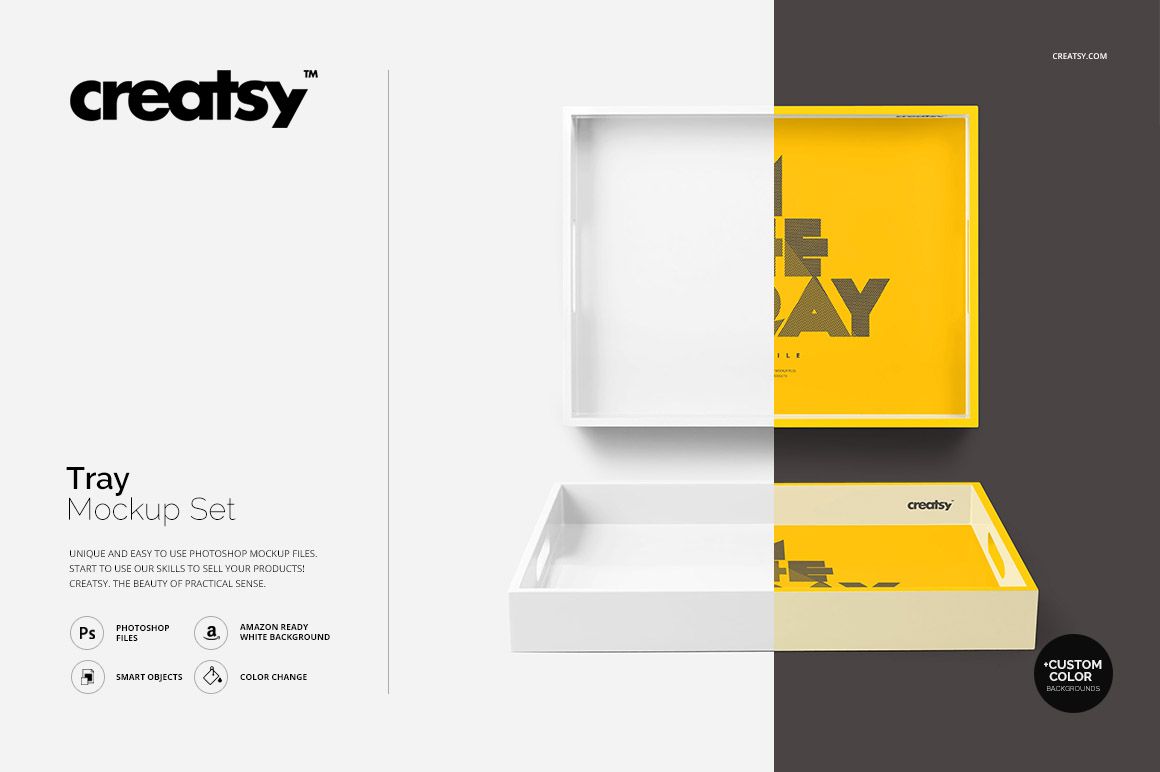
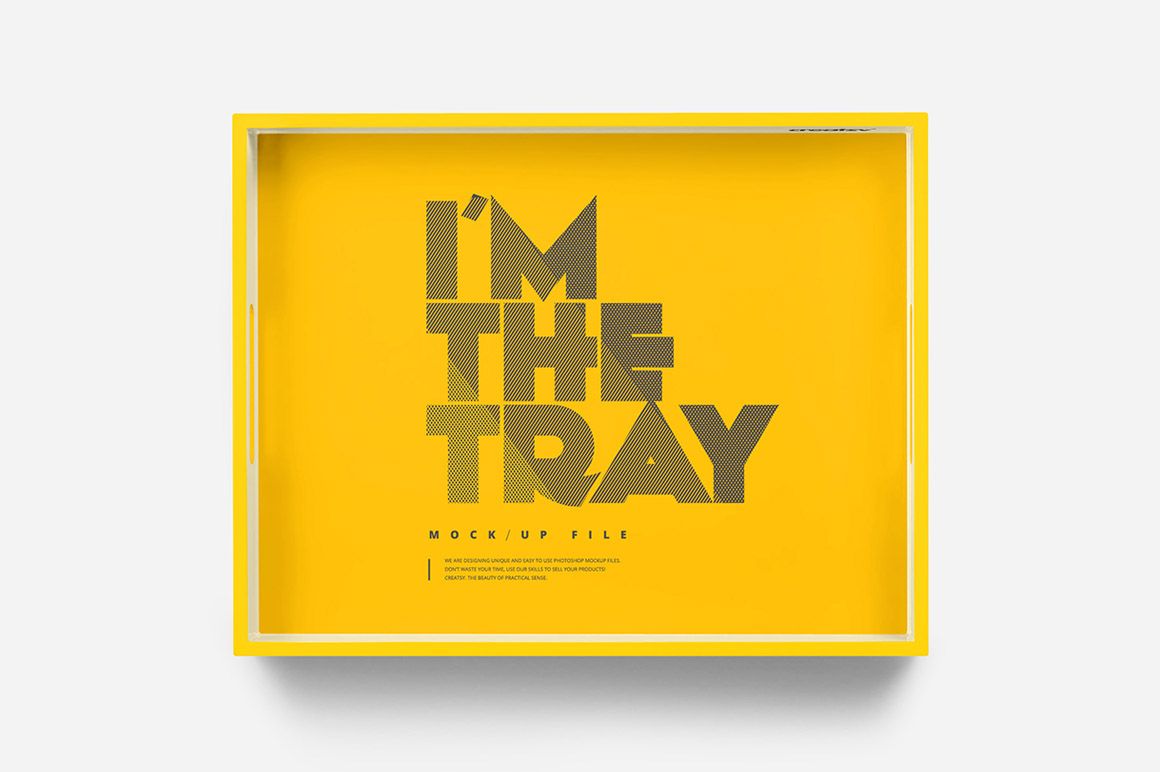
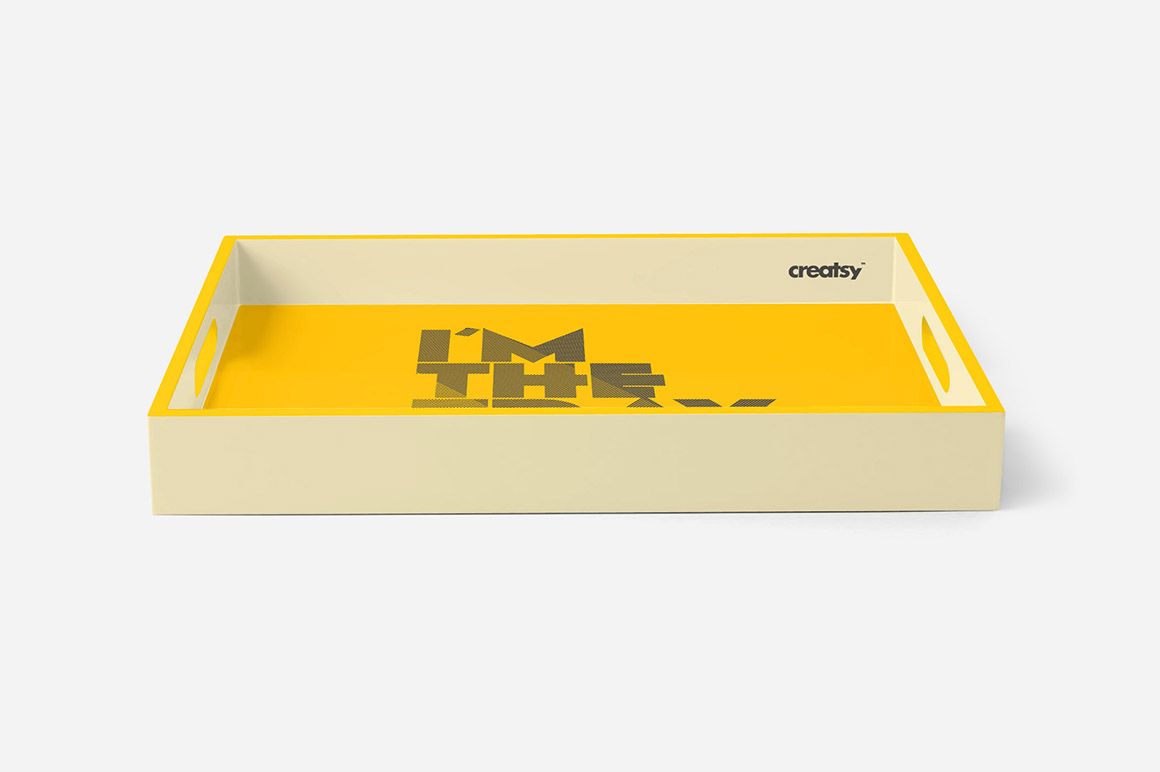
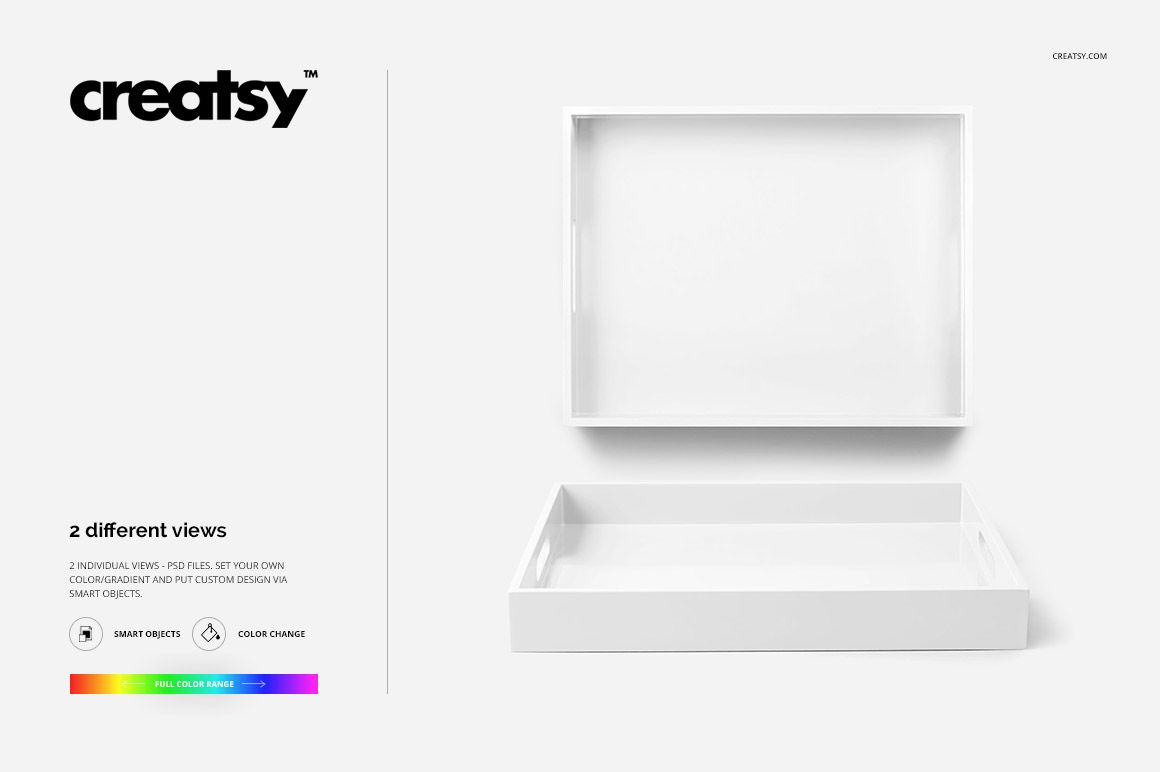
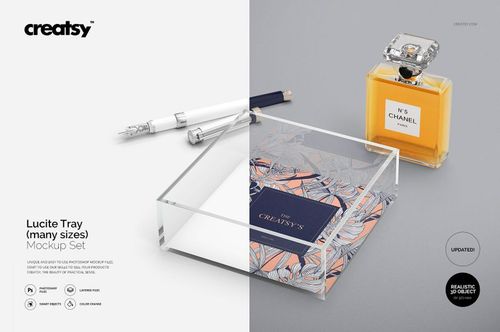
The same tray design reads differently from above and from across a table. Tray Mockup Set gives you both views of a rectangular serving tray with raised sides and cutout handles. Present the full artwork on its base, then use the angled view to show how it sits within the surrounding rim.
These two uncluttered scenes are useful for comparing a decorative pattern, a monogram or a branded hospitality concept without other tableware covering the design.
What Is Included
2 layered PSD mockups: a top view and a perspective view.
Each PSD measures 3000 × 3000 px at 300 DPI.
2 JPG previews and 1 TIF guide, 5 files in total.
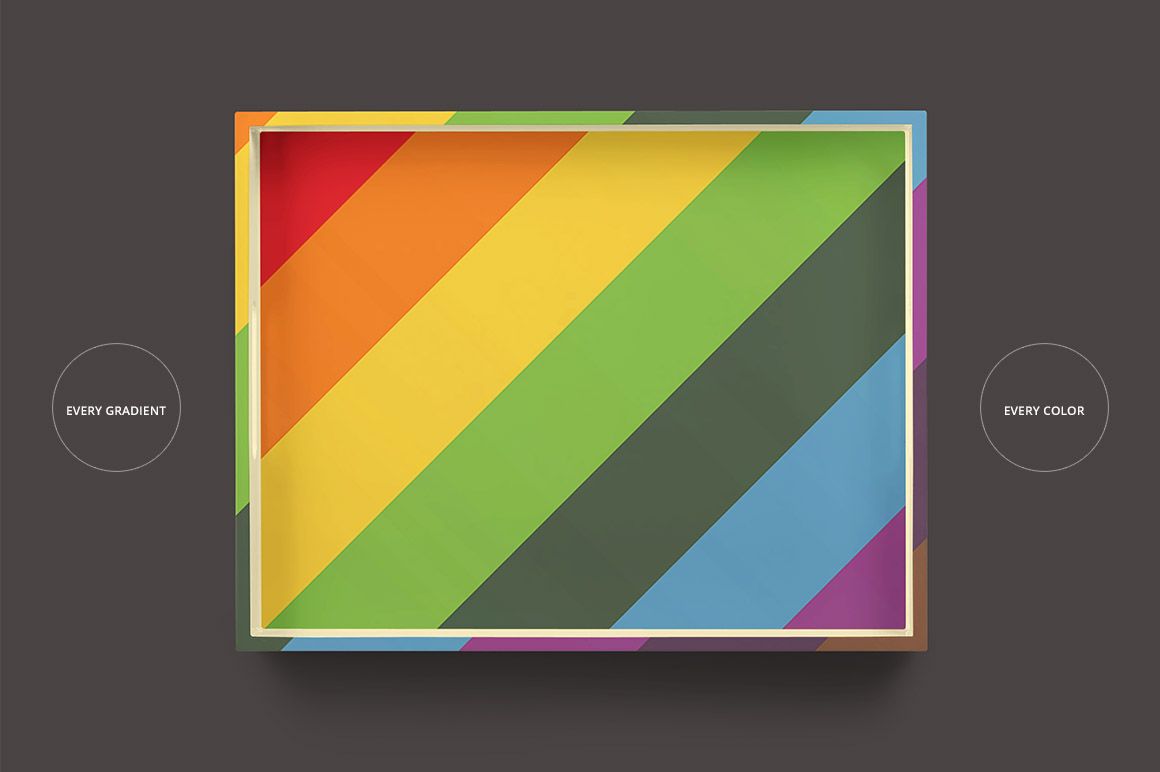
Smart Object artwork replacement with changeable colors and gradients.
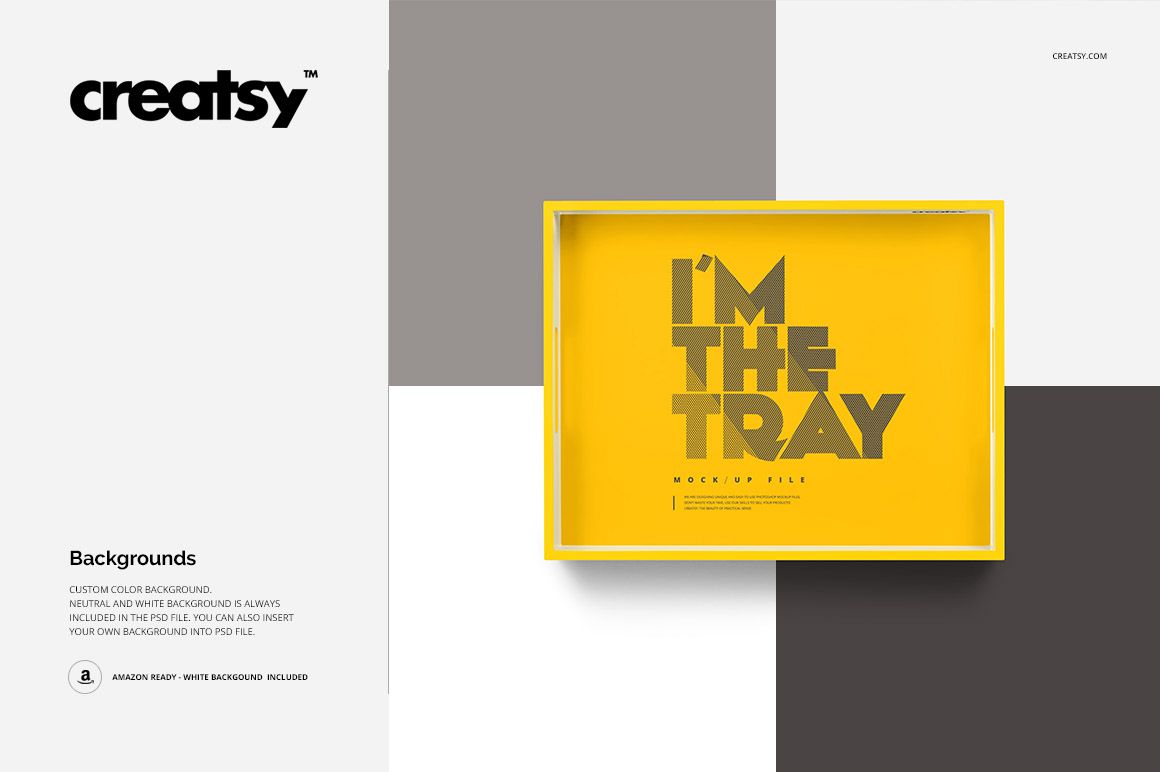
Custom, neutral and white background options.
Compatibility with Adobe Photoshop and Photopea.
Let the Rim Frame Your Artwork
The raised sides create a visible border around the tray base. Test a contrasting rim for a graphic collection or a quieter tone that lets the illustration remain the focus. The top view makes spacing easy to compare; the perspective view reveals how the front edge changes the visible portion of the artwork.
Easy Smart Object Editing
Open either PSD in Photoshop or Photopea and place your graphics inside the prepared Smart Object. Save the Smart Object, return to the main scene and adjust the available colors, gradients and background. Repeat the artwork placement in the second file to build a consistent two-view presentation.
Perfect For
Surface designers developing decorative home accessories.
Giftware brands presenting monograms and personalized tray concepts.
Illustrators creating homeware licensing portfolios.
Studios preparing serving tray branding for hospitality clients.
Digital mockup files only. No physical tray or example artwork is included.