Creatsy 3D Layers? Get the Free Smart Object Update
Last updated: April 2026
Update - April 2026: All Creatsy mockups that previously used Photoshop 3D layers have been converted to Smart Object versions. If your PSD still shows 3D layers, you have an older file. Download the newest package from where you purchased it - the update is free.
This page stays live for customers arriving from older Adobe forum posts, marketplace listings, reviews, and bookmarks.
Creatsy mockups no longer use Photoshop 3D layers. Every affected PSD has been updated to a standard Smart Object workflow. If your mockup still shows 3D layers, a missing 3D menu, a black screen, or broken rendering, the fix is straightforward: download the latest version of your mockup and open the updated PSD.
If you searched "How to use 3D layers in Creatsy mockups"
You do not need that workflow anymore. All Creatsy 3D mockups have been converted to Smart Objects, and the old 3D editing steps no longer apply.
This page is kept live because older links, marketplace descriptions, and support threads still reference Creatsy 3D layers. The recommended workflow today is Smart Objects - simpler, more stable, and compatible with current software.
My Creatsy PSD shows 3D layers - what should I do?
Download the updated Smart Object version for free from the platform where you purchased the mockup. If you still see 3D layers after opening a file, you are working with an older file version - not the current one.
This also applies if your mockup is not working and you see symptoms like:
- the 3D menu is missing in Photoshop
- a black or gray screen when opening the file
- broken or incorrect rendering
- old 3D controls such as Base Color, Default IBL, or Diffuse
- layers rasterizing to flat pixels when you interact with them
In almost every case, these issues mean you opened a legacy 3D-based PSD instead of the updated Smart Object file. Grab the newest package from your purchase platform and open the new PSD - the symptoms should disappear.
Why does my Creatsy mockup have 3D layers?
Some older Creatsy mockups originally used Photoshop's built-in 3D engine to wrap designs around product surfaces. Adobe removed those legacy 3D features from Photoshop - first deprecating them in version 22.5 (August 2021), then fully removing the 3D menu in version 25.x (2024). In current Photoshop versions, opening a file with 3D layers can cause black screens, missing menus, broken rendering, and automatic rasterization that destroys the editable workflow.
To keep every Creatsy mockup stable and future-proof, all affected files were converted to Smart Object versions.
What the update means for you
The Smart Object workflow is simpler than the old 3D method. You get better compatibility with modern Photoshop versions, and many updated files also work in Photopea (for compatible files). The update is free for every past customer - just pull the current version from your purchase platform whenever you need it.
Arriving from an old Adobe forum, Etsy, or Creative Market link?
Some older marketplace listings, reviews, and forum posts still mention 3D layers, specific Photoshop version requirements, or historical workarounds like "Deactivate Native Canvas." That advice applied to the old files and is no longer relevant for current Creatsy mockups.
The current downloadable files on every platform have been updated to Smart Objects. Always trust the newest download from your purchase platform over older listing copy, screenshots, comments, or forum advice.
How to download the updated file (free)
Purchased on Creatsy.com
- Log in to your Creatsy account.
- Go to Profile / Account -> Downloads.
- Download the newest package for your product.
Purchased on Etsy, Creative Market, or another marketplace
- Open the marketplace where you originally purchased the mockup.
- Go to Purchases or Downloads.
- Download the newest version available for that product.
Not sure where you bought it?
Check your order confirmation email or receipt. It usually contains the platform name, product name, and order number. If you still cannot locate it, contact support with any details you have.
How to edit updated Creatsy mockups in Adobe Photoshop
Updated Creatsy mockups use a standard Smart Object workflow - the same method used across the design industry for PSD mockups.
- Open the .PSD file in Photoshop.
- Find the layer named Design or Your Design Here (usually highlighted or inside a folder).
- Double-click the Smart Object thumbnail to open the .PSB source file.
- Place your artwork in the .PSB window. Hide or remove the sample design if needed.
- Save (Ctrl+S / Cmd+S) and close the .PSB (Ctrl+W / Cmd+W).
- Your mockup updates automatically with your custom design.
For a more detailed walkthrough, see the Step By Step Guide. If you are new to mockups in general, What is a Mockup? covers the basics.
How to edit updated Creatsy mockups in Photopea
Many updated Smart Object mockups can also be edited in Photopea, a free browser-based editor. This is a good option if you do not have a Photoshop subscription.
- Open the .PSD in Photopea.
- Find the Smart Object design layer in the Layers panel.
- Double-click the thumbnail to open the source.
- Add your artwork.
- Save (Ctrl/Cmd+S).
- Close the source tab - the mockup updates in the main document.
If the file does not work correctly in Photopea, first make sure you downloaded the updated Smart Object version, not the old 3D file. Complex mockups with displacement maps or advanced blending modes may require desktop Photoshop for best results. For supported Photoshop versions and alternatives, see Software Requirements.
How to tell if you opened an old 3D-based file
Your file is likely a legacy 3D version if you see any of these signs:
- a 3D cube icon on layers in the Layers panel
- a 3D panel or Materials panel in the interface
- terms like Base Color, Default IBL, or Diffuse in the properties
- mesh lines, UV overlays, or 3D environment controls on the canvas
If you see any of these, you are looking at the old file. Download the updated Smart Object version from your purchase platform - it will not have any of these 3D elements.
I downloaded the update but still see 3D layers
If you already grabbed the newest package and 3D layers still appear, check these common causes:
- You opened an older local copy saved on your computer instead of the newly downloaded PSD. Look in your recent downloads folder for the fresh file.
- You did not extract the ZIP fully before opening. Extract the entire ZIP package first, then open the PSD from the extracted folder. Do not open files directly from the ZIP preview. If you need help with this step, see the guides for Windows or Mac.
- You opened the JPG or PDF preview instead of the PSD file. The actual mockup is always the .PSD - other files in the package are previews or documentation.
- Your marketplace shows multiple download entries and you opened an older one. Look for the entry marked as the newest or latest version.
Still stuck? Contact support and include your product name, purchase platform, order number (if available), and a screenshot of your Layers panel. This helps the team identify the issue quickly.
Can't download or unzip your files?
If the problem is not about 3D layers but about downloading or extracting files, these guides cover the most common issues:
- Troubleshooting Downloading and Unzipping Issues
- Unzipping ZIP files on Windows
- Unzipping ZIP files on Mac
Frequently asked questions
Do I need Photoshop 3D features to use Creatsy mockups?
No. Current Creatsy mockups use Smart Objects, not Photoshop 3D layers. You do not need any 3D features, plugins, or legacy Photoshop versions.
Do I have to pay for the updated version?
No. The Smart Object update is free for all past customers. Download the newest version from where you originally purchased the mockup - no repurchase needed.
Can I use Creatsy mockups in Photopea?
Often yes, for compatible files. The standard Smart Object workflow - double-click, place design, save - works in Photopea for most updated Creatsy mockups. If a file does not behave correctly, download the latest version first, and use desktop Photoshop if needed.
Is Photopea free?
Yes. Photopea offers a free account and an optional Premium account with additional benefits like ad-free usage.
Can I edit Creatsy mockups on iPad?
Photoshop for iPad can open and preview mockup files, but full Smart Object editing is not supported there. If you want to edit mockups on iPad, use Photopea - it runs in the browser and supports Smart Objects on iPad. For the most reliable experience, desktop Photoshop remains the best option. See Software Requirements for details.
Why do some old listings or reviews still mention 3D layers?
Because some marketplace descriptions, historical reviews, and forum posts were written before the conversion was complete. The current downloadable files on all platforms use Smart Objects. Always trust the newest download over older listing copy or comments.
What happened to Photoshop 3D?
Adobe removed Photoshop's legacy 3D features over several versions, completing the removal in 2024. Adobe's interim replacement (Substance 3D Viewer beta) was also discontinued in October 2025. There is currently no built-in 3D editing in Photoshop. That is why Creatsy converted all affected mockups to Smart Objects - to keep them working reliably in current and future Photoshop versions.
What Photoshop version should I use?
Updated Smart Object mockups work in modern Photoshop versions (CC 2021 and newer). For the most reliable experience, use a current version. Check Software Requirements for specific version recommendations.
Related articles
Archived legacy 3D workflow (outdated)
This section is preserved only for customers who opened a historical 3D-based PSD download. It does not apply to current Creatsy mockups.
Photoshop's legacy 3D features have been removed by Adobe. In newer Photoshop versions, 3D layers may rasterize to flat pixels when interacted with, permanently breaking the editable workflow. Adobe's "Deactivate Native Canvas" workaround is increasingly unreliable. For details, see Adobe's 3D FAQ.
Show archived 3D-layer instructions
Are we still using 3D layers?
Small part of our mockup library utilize 3D layers. As Adobe decided to remove the 3D feature from Photoshop, we are currently redesigning all our mockups with 3D layers and replacing them with Smart Objects versions. If you purchased a mockup that use 3D feature you can be sure it will be soon updated, and you will be able to redownload new version for free. All our mockups with 3D layers contain 3D Demo File and are marked on the top of a listing so you can fast recognize them before reading the description:

Photoshop 3D known issues
- Photoshop use of 3D features may not update the screen properly or render the correct results for e.g. black screen. We recommend using the Tech Preview option for overriding Photoshop's native canvas mode to continue to use the 3D features. Go to Edit > Preferences > Technology Previews, and check the item Deactivate Native Canvas, then restart Photoshop.
If you still experience issues with 3D layers you can check the following:
- Do you use recommended Photoshop version?
Minimal version for using 3D layers is Photoshop CS6 Extended. Please always read the product description carefully as there are a lot of changes between Photoshop versions when it comes to 3D. If colors are not displayed correctly or are overburned you are probably using version that is not recommended for the purchased mockup file. - Do you work in proper color mode?
To use 3D layers you will have to work in RGB/8 bit mode. To check it go to Photoshop menu > Image > Mode and make sure you have selected: RGB Color, 8 Bits/Channel. - Do you have GPU enabled?
Enabled GPU is required to work with 3D layers. To check it go to Photoshop menu > Edit > Preferences > Performance and make sure Use Graphics Processor item is selected.
How to edit 3D layers?
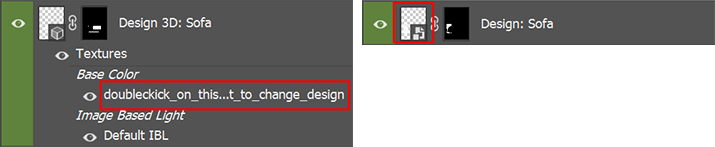
In our mockups, 3D layers have the same function as Smart Objects - they are warping aplied design according to perspective and product mesh. The main difference between 3D layers and Smart Objects is the area where you double click to open .psb file (new opened window where you place your design). In case of smart objects you are double clicking a thumbnail, and in case of 3D layers you are clicking text (or path) between Base Color and Default IBL (or between Diffuse and Image Base Light in older Photoshop versions):
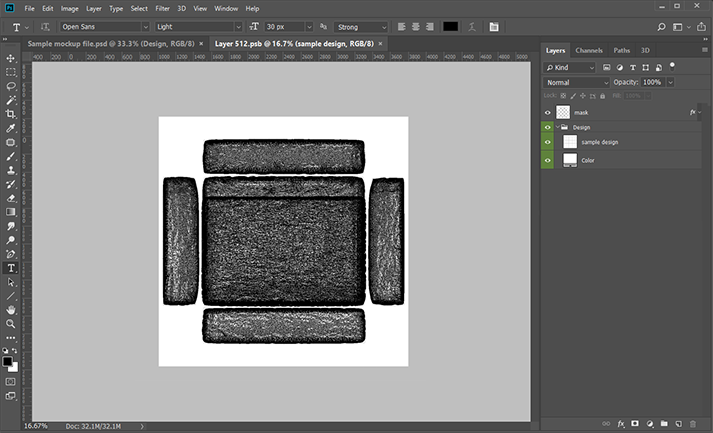
By double clicking selected area you will open new window (.psb file). Sometimes you may notice black dense lines, it's a 3D mesh on an object:
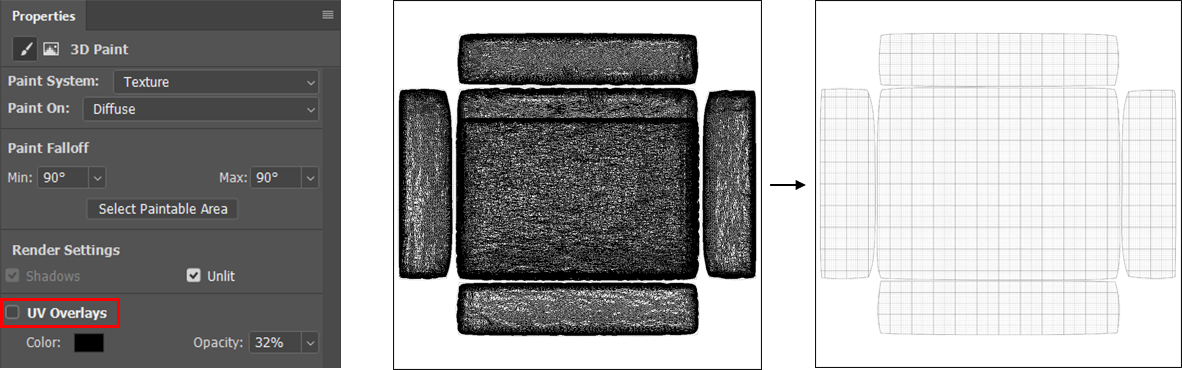
We recommend to switch it off. Go to Photoshop menu and choose Window > Properties and uncheck UV Overlays. Note that you will make it only once - Photoshop will remember your settings for all other mockups with 3D content:
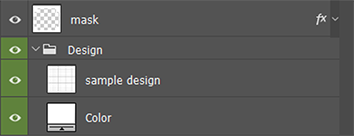
Have a look on the layer palette. All you have to do is to place your design inside "Design" folder above sample design layer (after it you can delete this layer). If your design includes transparency please use "Color" layer to set custom color below as 3D layers do not support transparency. Then please click: "CTRL+S" ("Command+S" on Mac) and "CTRL+W" ("Command+W" on Mac) to save and close .psb file. Your mockup will be updated with your custom design:
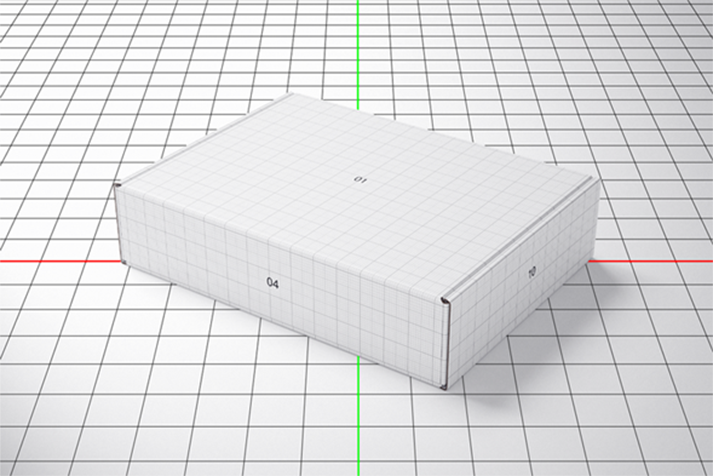
Sometimes you will notice 3D environment lines like below, click CTRL+H (Command + H on Mac) to hide it:
Can I continue to use my Photoshop files that contain 3D layers?
Yes, we recommend using Photoshop 22.2 if you continue to need access to Photoshop 3D features. The download process is very simple, but we will walk you through it step by step just in case.
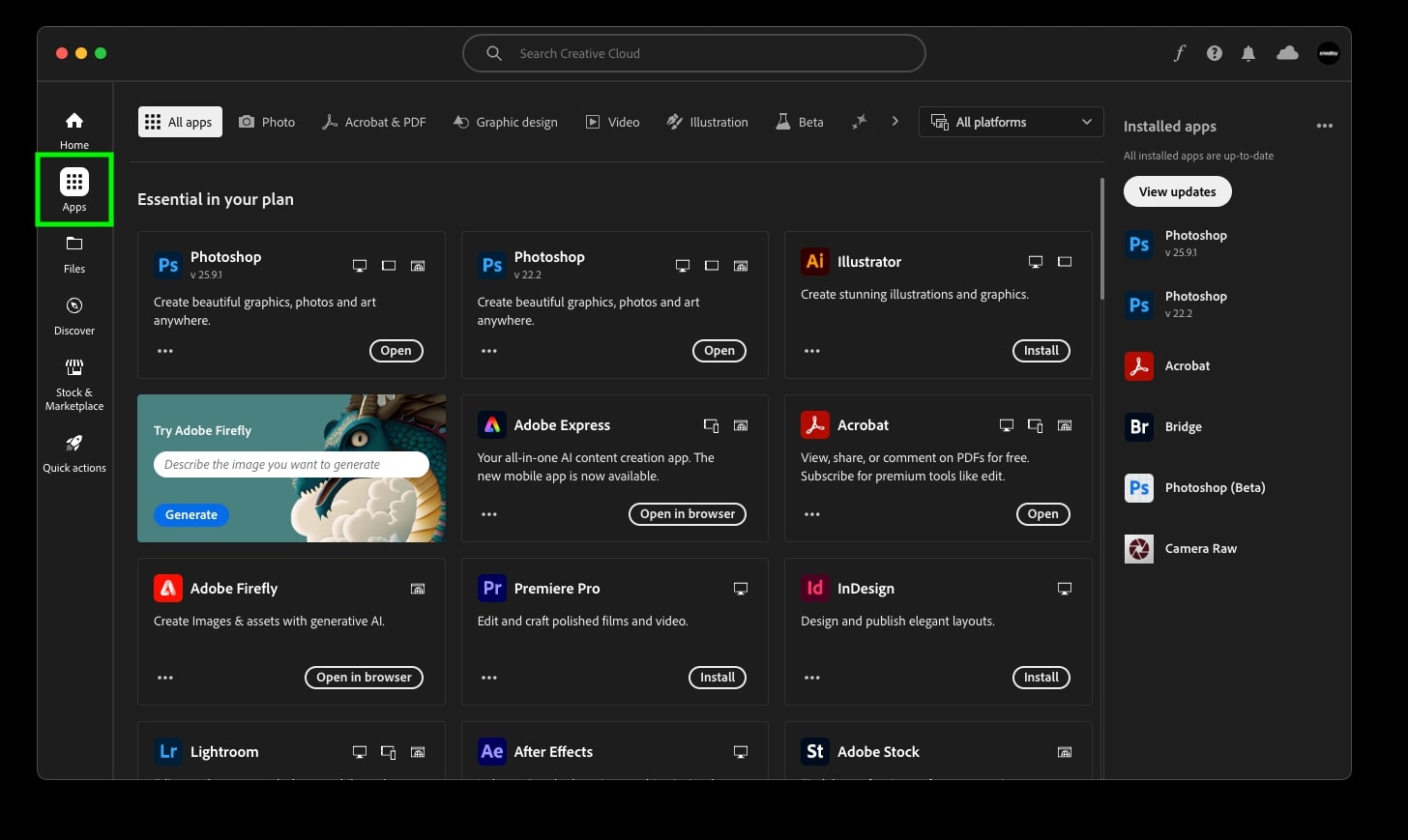
Log in to your Creative Cloud account and select the "Apps" option on the left. Locate the Photoshop application and click the three dots below the tile.
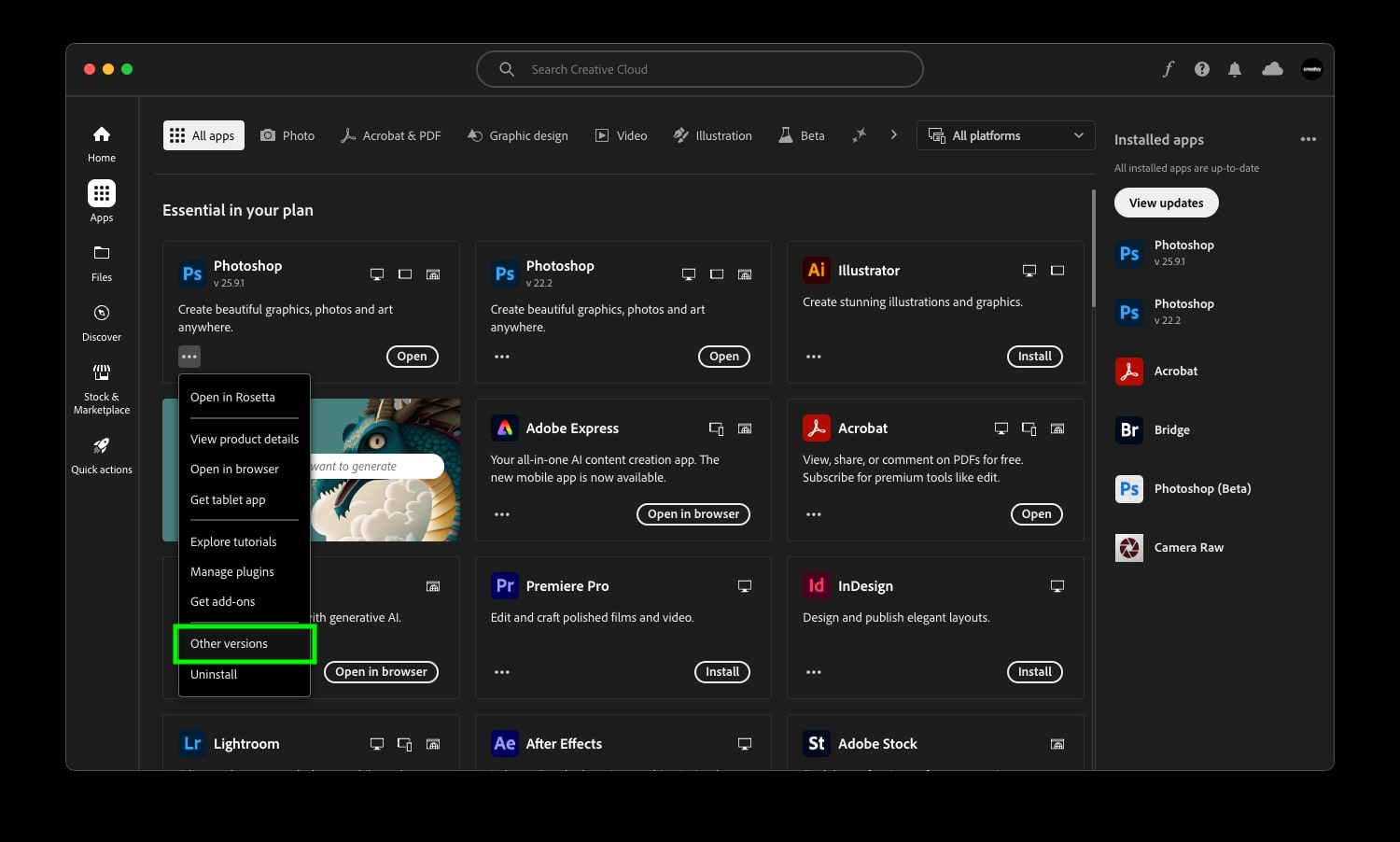
Select "Other versions" and scroll down through the different versions of Photoshop until you find version 22.2.
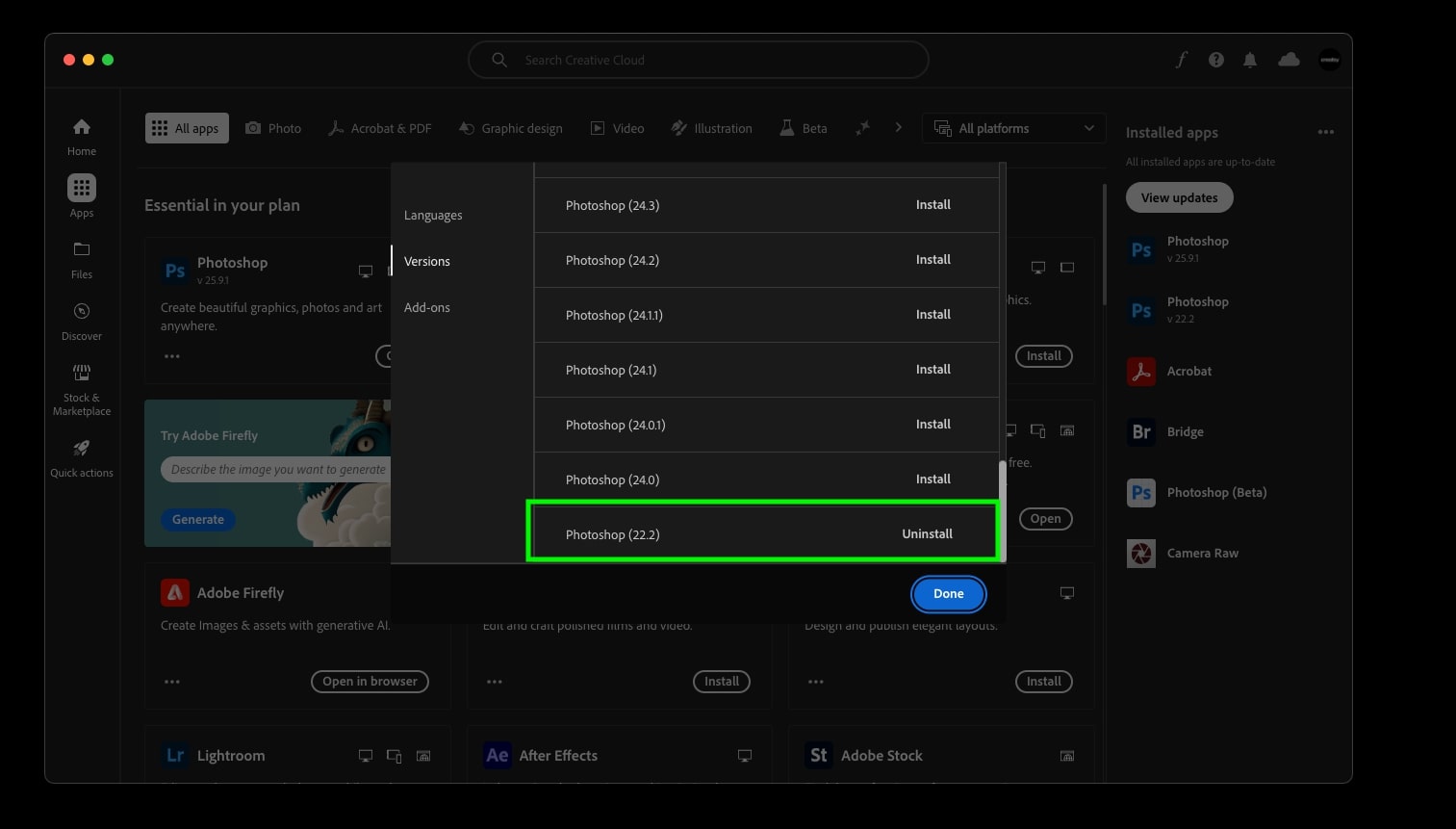
Click it and... that's it! Done.
Can I install two versions of Photoshop on my computer at the same time?
Sure! You can easily install the current version and 22.2 or whatever 22.x version you prefer, and switch back and forth between versions.