ID: 1388740949 | Updated: Feb 20, 2024

Product Details

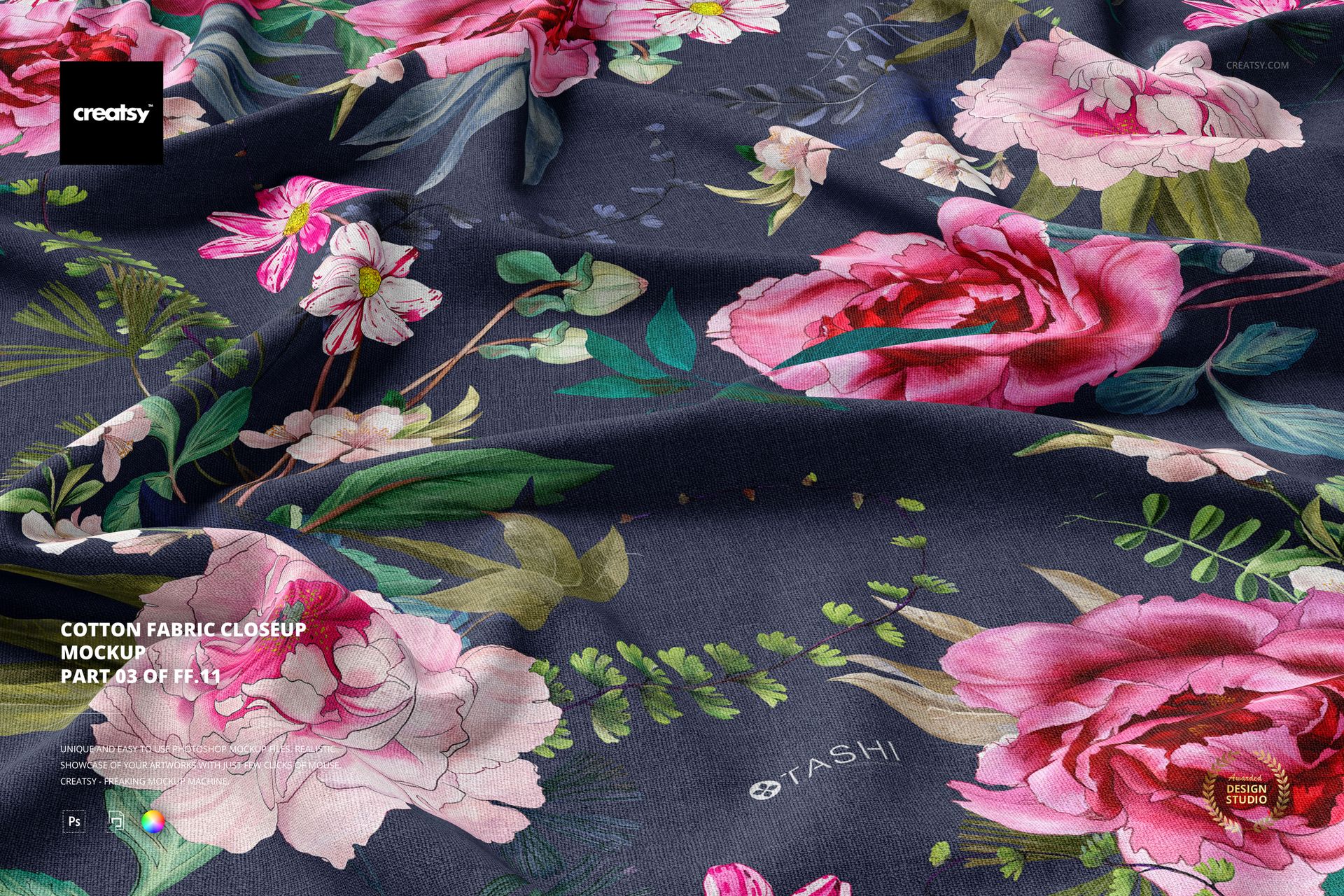
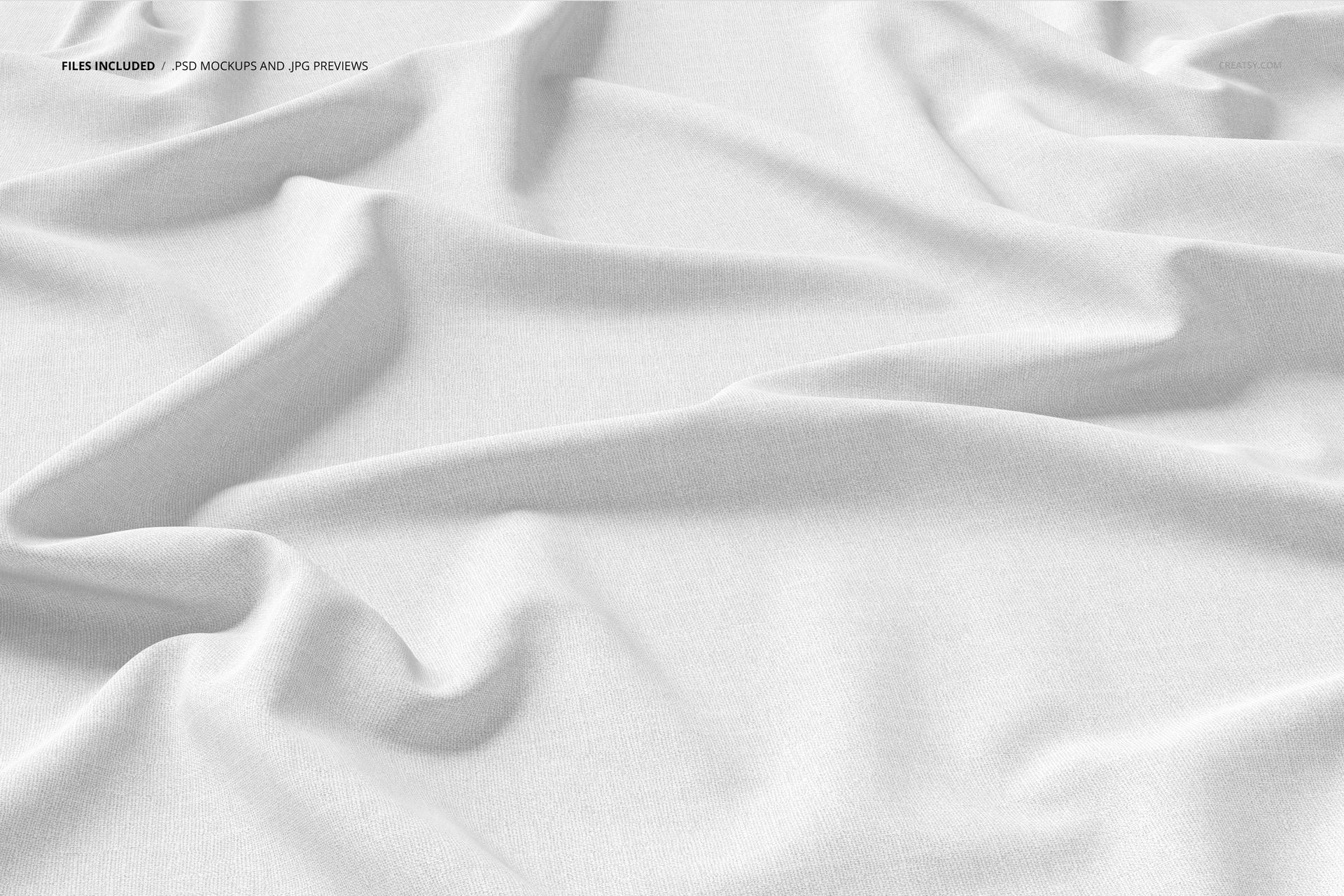
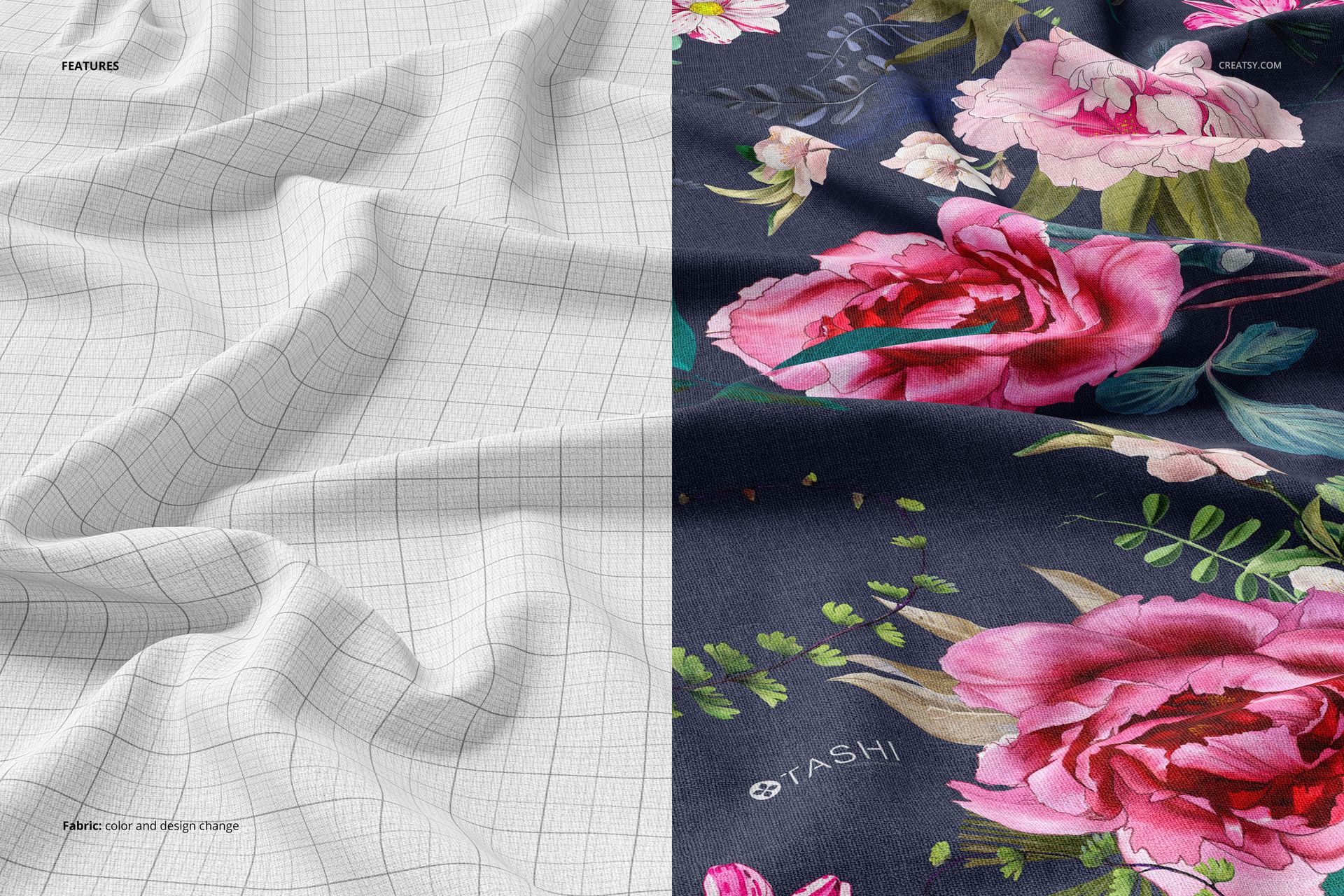
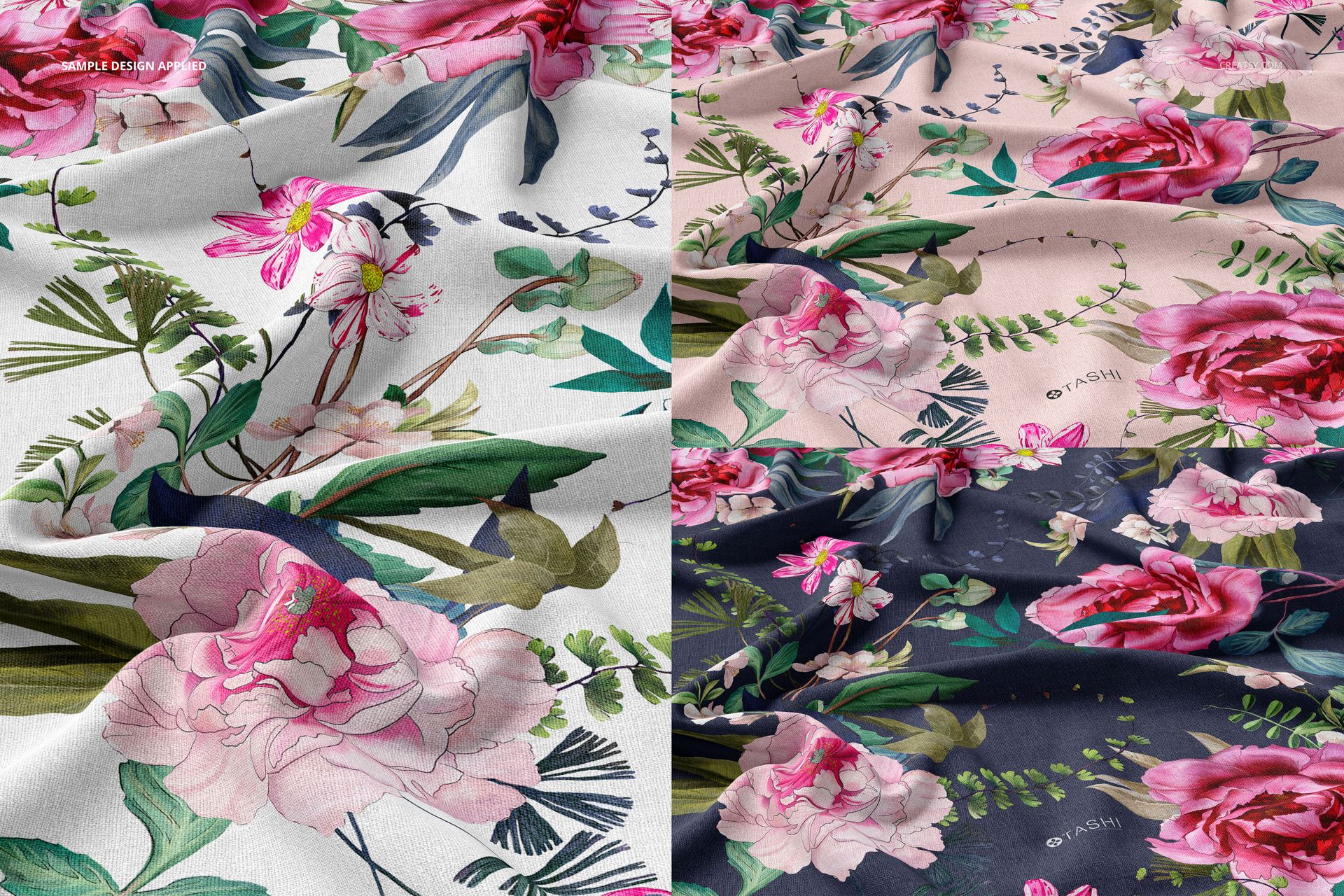
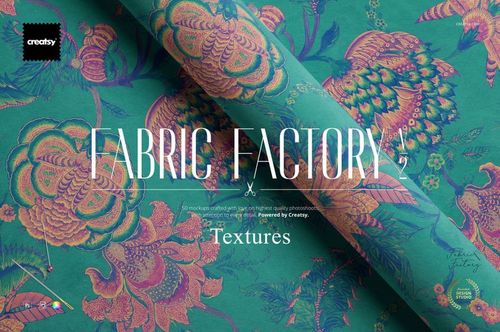
Tight crop on a piece of cotton fabric, close enough that the weave structure is visible and the pattern fills the entire frame. No props, no background elements, no distractions. The fabric surface takes up the full 6000 by 4000 pixel canvas, giving your pattern maximum screen presence. The smart object handles the design, color layers handle the fabric base color, and what you export is a photorealistic close-up of printed cotton that could pass for a photograph taken with a macro lens in a textile studio. The pattern shown in screenshots was applied by Tashi Tsering and is not included in the download.

Why Close-up Framing Matters

Wide fabric mockups show context: how the material drapes, folds, or lies on a surface. A close-up does something different. It lets the viewer examine your pattern at the level of individual motifs, color transitions, and fine details. For patterns with intricate linework, small-scale repeats, or subtle texture, a close-up is the only presentation format that communicates what makes the design special. Buyers and art directors evaluating patterns for licensing decisions want to see the details, and a close-up is how you show them. This is also the format that works best for portfolio thumbnails and social media squares where the image needs to be instantly readable at small sizes.

The Cotton Surface

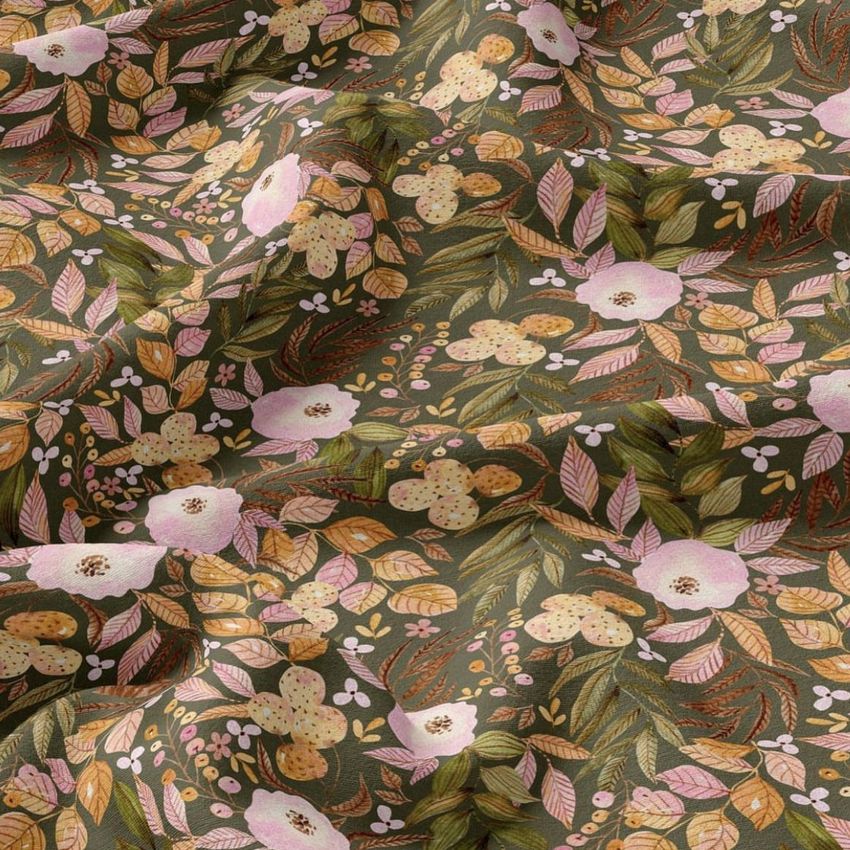
This is photographed cotton fabric, and the weave texture is preserved in the final composited image. When you apply your design through the smart object, the cotton grain subtly influences how colors and edges render. Saturated hues pick up the slight irregularities of woven thread, and sharp edges in your pattern soften just enough to look printed rather than digitally overlaid. This material authenticity separates a good fabric mockup from a flat rectangle with a pattern on it. Buyers who know textiles will see cotton when they look at this image, which is exactly what you want if you are selling cotton-specific prints.

Color Independence

The color layers in this file operate separately from the pattern smart object. This means you can change the base fabric color without altering your pattern artwork. Test how a floral design reads on white cotton versus natural unbleached cotton versus a pastel ground, all without re-editing your pattern file. For designers who sell colorway variations, this feature turns a single mockup session into a complete colorway presentation in minutes rather than hours.

Compared to Wider Shots

This close-up belongs alongside wider fabric mockups in your presentation toolkit, not instead of them. Use the close-up for detail visibility, pattern appreciation, and social media crops. Use a wider draped or folded mockup for context, lifestyle feel, and showing how the fabric behaves in three dimensions. The combination gives viewers both the macro beauty of the pattern and the practical information about how it translates to an actual textile product. If you are building a product listing, the close-up works as the hero image or the detail shot in your gallery.

File Details

One PSD at 6000 by 4000 pixels, 300 DPI, RGB color mode. Download size is 97.67 MB. The file requires Adobe Photoshop CC 2015 or newer. Layers are organized with clearly labeled smart objects and color adjustment layers. The cotton fabric, weave texture, and lighting are fixed elements from the original studio photograph.

File details

Compatibility
PhotopeaAdobe Photoshop
Number of files included
3
Package size
97.6 MB97.6 MB|102 MB102 MB
Files type
.psd, .jpg, .pdf
Files size
6000x4000
TEST FOR FREE

Made with Creatsy

Real designs. Real customers. See how creatives use Creatsy mockups to turn their artwork, branding, and product ideas into polished visuals.

MEET THE SHOP

Creatsy logo

Creatsy

Poland
4.7 (656)

Bring your ideas to life.

We're a family-run studio in Katowice, Poland, making PSD mockups by hand since 2016. Everything in this shop starts in our own studio. We shoot the photography, build the 3D, and put together every Smart Object PSD ourselves - then we test it, organize the layers, and only ship it once it actually works...
GO TO SHOP

HOW IT WORKS

3 clicks. That's it.

No tutorial needed. If you can copy-paste, you can use this.

  1. 1OpenDouble-click the smart object inside the PSD - in Adobe Photoshop, or free in your browser with Photopea.
  2. 2PasteDrop in your pattern, print, or artwork. Any design, any style.
  3. 3SaveHit save and the mockup wraps it in for you - shadows, folds, and lighting included.

FROM IDEA TO IMAGE

Built for real workflows

Skip the photo shoot Show your artwork on the real product type for approvals or listings - no studio, no model, no sample.

See it on the product, not a swatch Drop your file into the smart object and the scene's lighting and folds wrap around it, so you judge the real thing before you commit.

Smart Objects

Edit once and you're done. Your artwork drops into a smart object and the mockup updates itself - no masking, no warping by hand.

Perfectly Organized

Named layers and folders you can actually navigate. Find what you need, change what you want, and get out fast.

Print-Ready

High-resolution files built to hold up on screen and in print. Exact size and DPI are in this product's Details above.